

Settings
Configure Commander agents and third-party pool connections
Overview
The Settings page lets you manage different core components that power Commander:
- The on-site Agents that scan and communicate with your miners.
- The Third-Party Pool connections that can be used as backup stratum endpoints.
- The Clients (hosting customers) that own miners in your Inventory.
- The Commander Plan and Billing mode.
Access Settings by clicking the wrench icon in the top navigation bar of Commander.
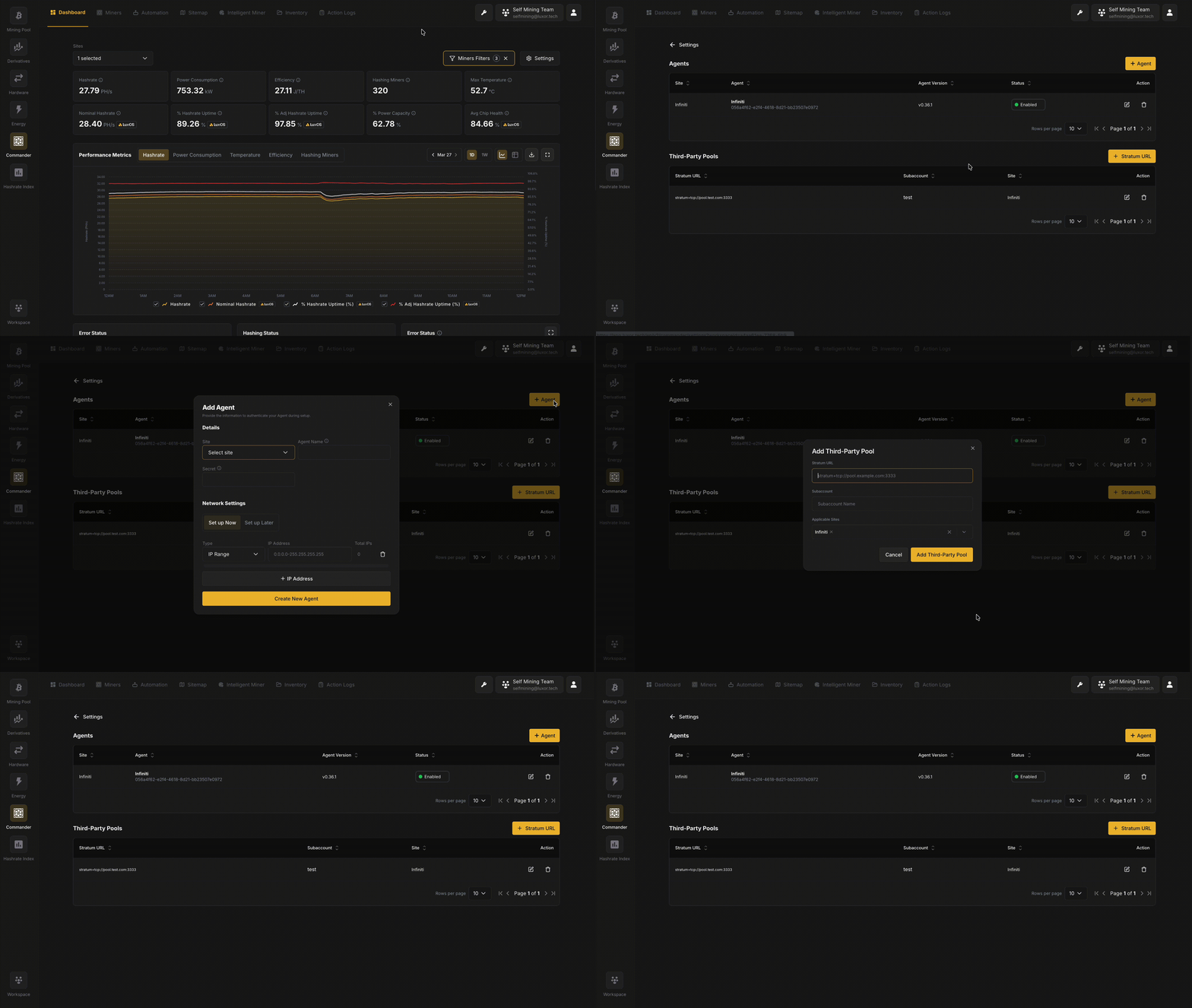
Agents
Agents are lightweight software services deployed on-site that discover, monitor, and execute commands on your miners. Each Agent is associated with a specific Site and scans a defined set of IP addresses to detect mining hardware on the local network. Commander requires at least one active Agent to begin monitoring miners.
Agents Table
The Agents section displays all registered agents in a table with the following columns:
| Column | Description |
|---|---|
| Site | The Site the agent is assigned to |
| Agent | The agent's display name and unique identifier (UUID) |
| Agent Version | The software version currently running on the agent |
| Status | Whether the agent is Enabled or Disabled |
| Action | Controls to edit or delete the agent |
Adding an Agent
To add a new Agent, click the + Agent button. The creation flow walks you through selecting a Site, naming the Agent, setting a shared secret, and configuring which IP ranges to scan. For a detailed step-by-step walkthrough, see the Getting Started guide.
Managing Agents
- Edit: Click the edit icon on an agent row to modify its name, network settings, or other configuration.
- Delete: Click the delete icon to remove an agent. This will stop all monitoring and command execution for miners discovered by that agent.
Third-Party Pools
Third-Party Pools allow you to register external mining pool connections that can be used as backup stratum endpoints for your miners. When configured, these pool connections become available as fallback options in your miners' pool configuration, providing redundancy if your primary pool connection becomes unavailable.
Adding a Third-Party Pool
Click the + Stratum URL button to add a new third-party pool connection. The modal requires the following fields:
- Stratum URL: The pool's stratum connection address (e.g.,
stratum+tcp://pool.example.com:3333). - Subaccount: The username to use when connecting to this pool.
- Applicable Sites: Select which Sites this pool connection should be available to.
Click Add Third-Party Pool to save the connection. The pool will then appear in the Third-Party Pools table and become available as a backup pool option when configuring miner pool connections.
Clients
Clients represent the hosting customers that own miners in your fleet. Each Client record stores contact details, an optional per-kWh price, and an optional Third-Party Pool assignment. Once a Client exists, you can associate Inventory assets with it via the Client ID field, giving operators a single view of which miners belong to which hosting customer.
Clients Table
The Clients section displays all registered clients in a table with the following columns:
| Column | Description |
|---|---|
| Client ID | A user-defined identifier for the client (e.g., an internal customer code). Required and must be unique within the Workspace |
| First Name | The primary contact's first name |
| Last Name | The primary contact's last name |
| Company Name | The client's company or organization name |
| The primary contact email address | |
| Price per kWh | The energy price negotiated with this client, in USD. Optional |
| Third-Party Pool | The Third-Party Pool connection this client's miners should point at. Optional |
| Action | Controls to edit or delete the client |
Adding a Client
Click the + Client button to open the add-client dialog. First Name, Last Name, Company Name, Client ID, and Email are required; Price per kWh and Third-Party Pool are optional. The Third-Party Pool dropdown is populated from the pools registered in the Third-Party Pools section above, so add any pool the client needs before creating the Client record.
Commander Plan and Billing Mode
The bottom of the Settings page displays your current Commander Pro subscription status. Commander Pro unlocks advanced features beyond the free Commander Lite tier, including advanced bulk actions, triggers & schedules, inventory management, Intelligent Miner & ancillary services participation, and VIP customer support.
From this section you can:
- View your current plan status, including whether you are on a free trial and how many days remain.
- Change Payment Method: Switch between the two available payment options - $100 MW / Month (paid monthly via Stripe) or +0.25% Hashrate Adder (paid through your mining pool rate).
- Cancel Pro Plan: Downgrade back to Commander Lite.
For full details on Commander pricing and what's included in each tier, see Pricing.